Connecting your WordPress site with an outgoing SMTP email server:
Why FluentSMTP?:
- Ease of use. If you have a WordPress site and want to take orders, send updates, and receive notifications then you need to link an SMTP service, some suppliers will bundle this into your packages but if you want to do it yourself you need to use a plugin, my recommendationis FluentSMTP.
- Cost. The FluentSMTP developers have not gatekept Outlook behind an additional 'Pro' subscription model and offer a simple set of instructions which I have copied below.
If you want to follow this straight from their site please do! Supporting their web traffic is an excellent way to keep these projects alive:
Following the below can be daunting but if you have your Outlook Business email set up already and need some help you can drop us an email at hello@rootedhosting.co.uk and we can quickly guide you through the setup, this is a one off setup service that we offer as part of the on boarding process.
Take your time reading through the below and follow the screenshots, it's not as as complicated as it looks. - Adam
Outlook or Office365 with FluentSMTP
Same connection as the Entra guide. This page is the Azure Portal walkthrough, which is what a lot of older bookmarks open.
Outlook / Microsoft 365 is not for mass marketing. Use it for site mail (forms, resets, notifications).
Open FluentSMTP
Settings → FluentSMTP. Pick Outlook or Office 365, or Add Connection → Outlook or Office 365. Copy App Callback URL from the form. With pretty permalinks it is /wp-json/fluent-smtp/outlookcallback. With Plain permalinks it is index.php?restroute=/fluent-smtp/outlook_callback. Use the string the form shows, character for character.
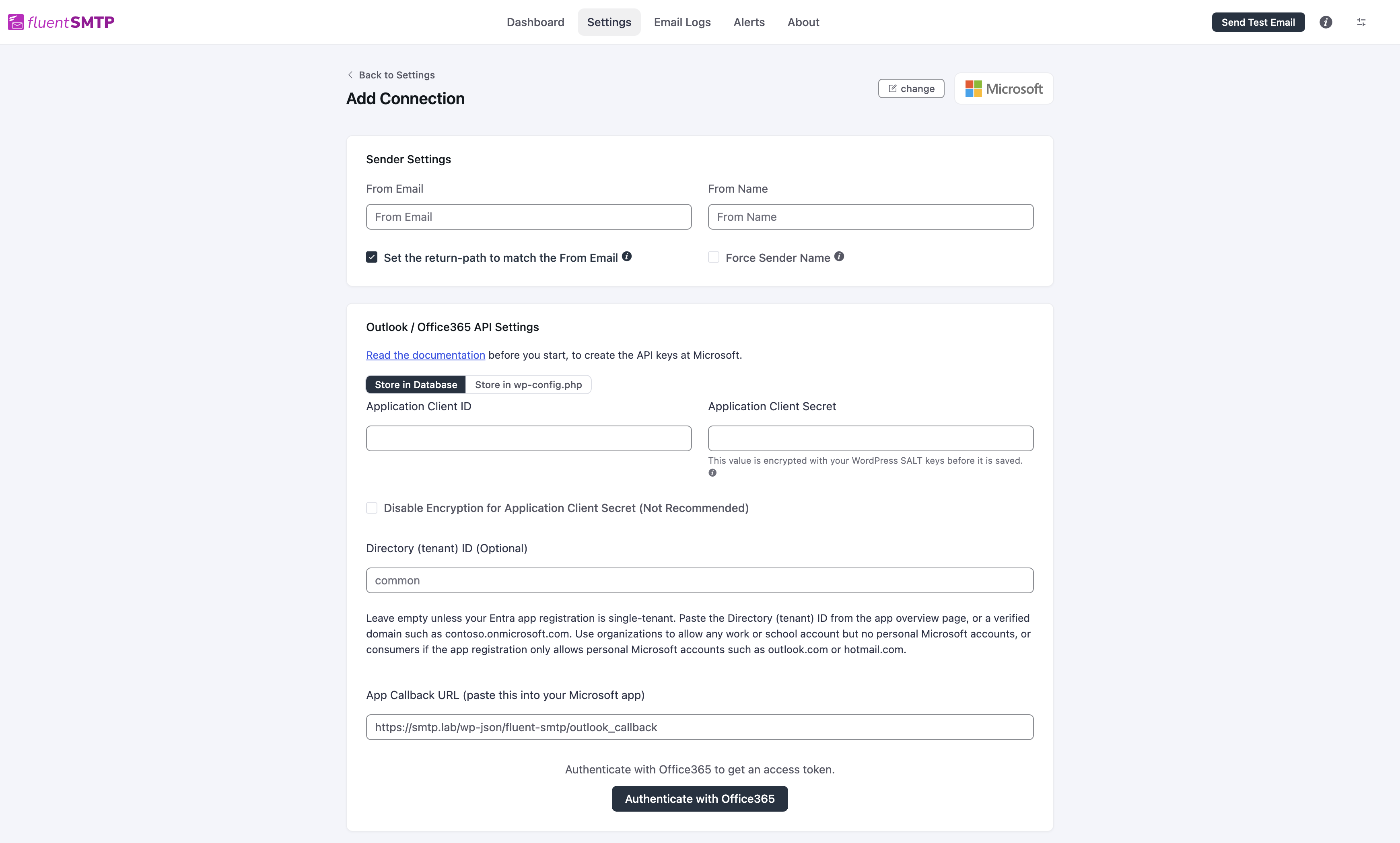
Register an application in Azure
- Open portal.azure.com and sign in.
- Search for App registrations.
- New registration (or Register an application if the list is empty).
- Name:
FluentSMTP. - Supported account types: Accounts in any organizational directory (Any Azure AD directory - Multitenant) and personal Microsoft accounts unless you are locking this to one tenant.
- Redirect URI: Web, value = App Callback URL.
- Register. Copy Application (client) ID.
The Entra admin center exposes the same registration settings. Use your own site’s callback, copied directly from FluentSMTP.
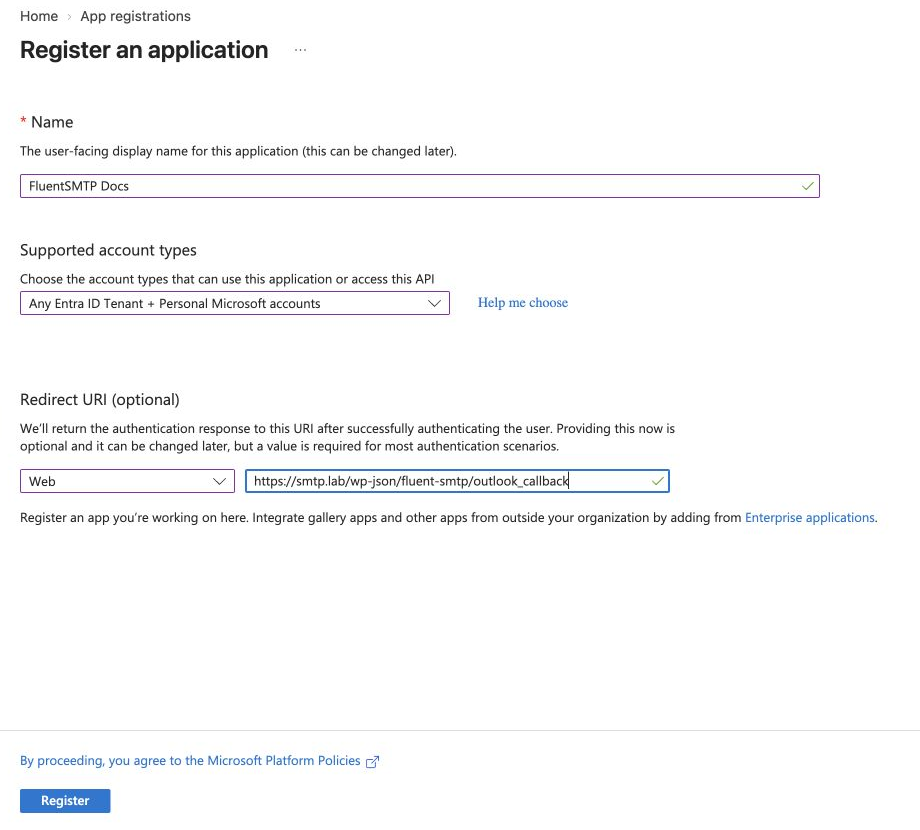
The screenshot uses smtp.lab; substitute the callback copied from your own site.
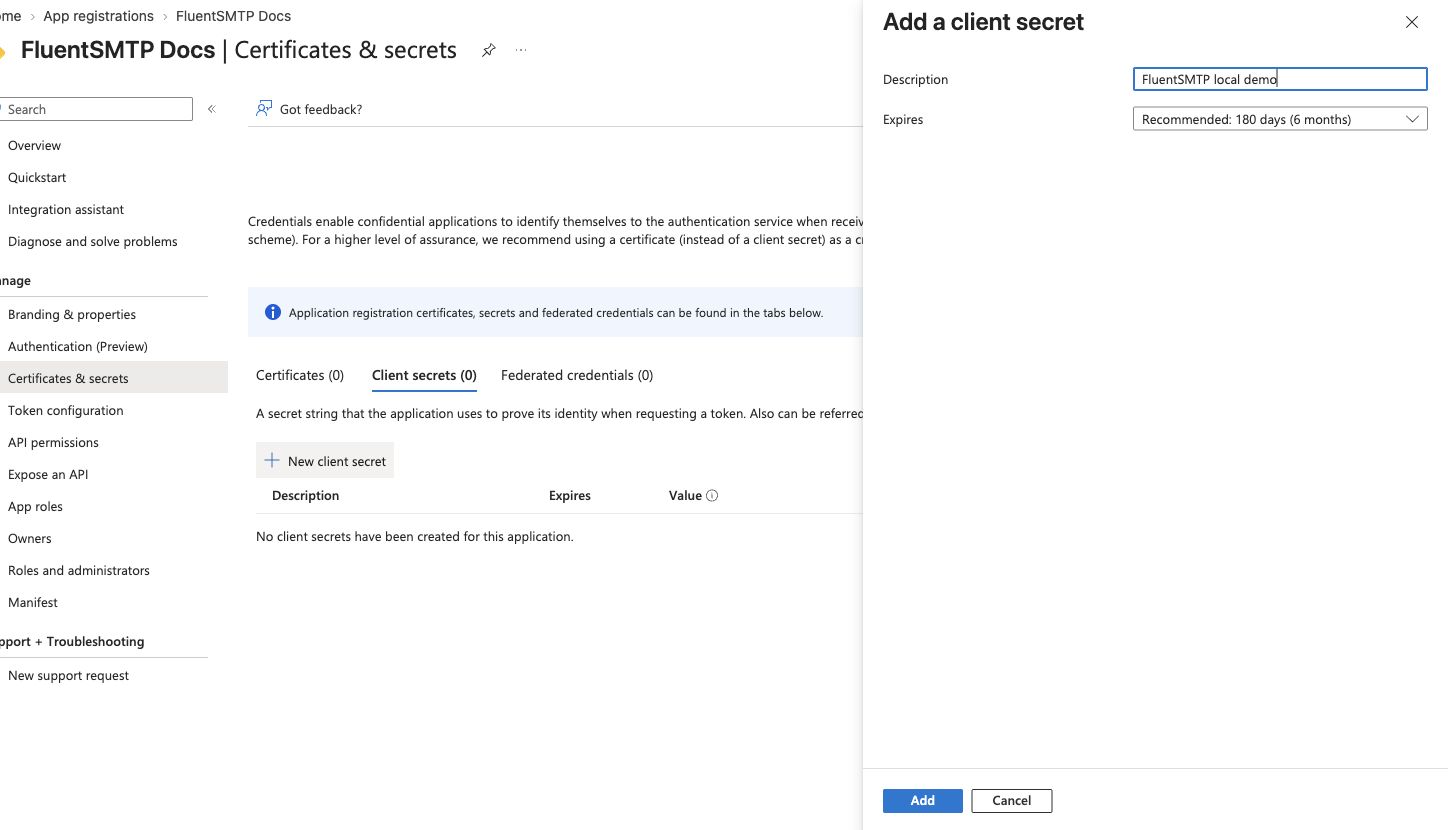
Client secret
- Certificates & secrets → + New client secret.
- Add, then copy Value. Not Secret ID.
FluentSMTP
Leave Store in Database selected. Paste Client ID and Client Secret. Leave Directory (tenant) ID empty unless the app is single-tenant (then paste the tenant ID from Overview). Click Authenticate with Office365, approve, save. You can tick Disable Encryption, or switch to Store in wp-config.php. Both are optional. See Where secrets are stored.
After approval, copy Your Access Code from the callback window into FluentSMTP’s Access Token field and click Save Connection Settings. Reopen the saved connection and check that it says Outlook / Office365 is connected.
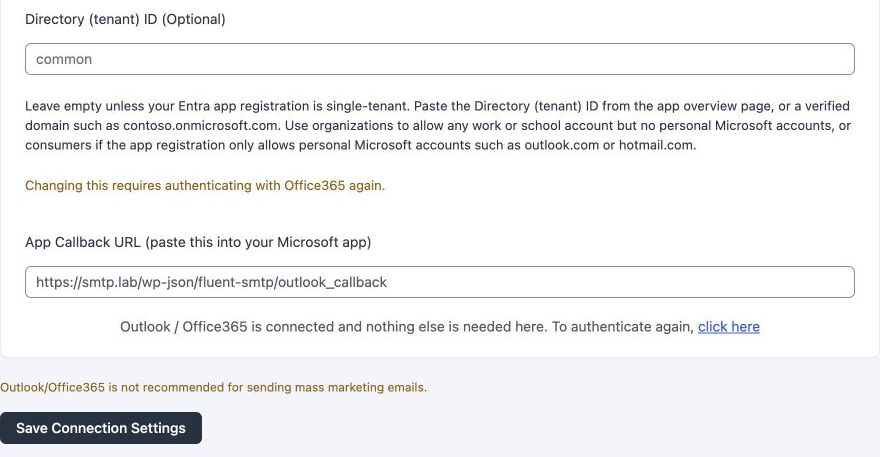
Send a test. If a redirect URI error appears, the URI in Azure does not match the callback on the form.
Tenant notes and permalinks: see the Entra article.
Source: https://fluentsmtp.com/docs/setup-outlook-with-fluentsmtp/